Switching to Colemak – Day 1

So I have decided to undertake a very large project… become Colemak – Fluent.

If you aren’t familiar with the concept of Colemak or other alternative keyboard types, here is a pretty decent writeup of what they are and what they do. As a basic overview, the standard QWERTY layout was actually meant to slow down typists so that there would be minimal jams when writing on a typewriter.

However, with modern keyboards, jamming is a thing of the past. Yet, QWERTY isn’t. There are other alternative keyboard layouts out there that optimize finger movement when typing, but I have chosen Colemak because it keeps a lot of the punctuation in very-easy to reach places, a must-have for programming.

Yet, I can’t just go from typing nearly 90 wpm to 5 wpm and expect to stay caught up in school. So, I found out some steps called “Tarmak” which will help in assisting in the transition. This way, I can change my whole keyboard layout and start transitioning as fast as possible.

I’m going to put up some baselines out right now, and I’ll love to keep this as a live post to track my progress, and if you are interested in the transition as well, then this may be a quick guide into your near future.

Also, I should also state that I’m a high school senior when I am making this transition, and I have been using QWERTY ever since 3rd grade. Keep these factors in mind when you think about how long your transition might take.


This is my benchmark score on typeracer… I was also doing this on my MacBook Pro keyboard, which I type a bit slower on because I’m not using the Microsoft Ergonomic Keyboard 4000.

QWERTY Benchmark

Hopefully, I will be able to surpass this wpm within the next month or two.

Data Collection Robot

Just repeating what I said in my other posts: this is not a live post, I was busy when I made this project, so I’m coming back now and writing it all down…

Anyways, onto the project itself:

This summer (2016), I’m working on a project that I’m going to apply for a science fair with. Without going into too much detail, a big part of my project revolves around having data, specifically pictures. In fact, the amount of images that I need is on an order of magnitude of a million… Not some small feet feat.

The best/worst part of this is that these photos need to be collected by your’s truely, as there is some other information that works alongside photos to make the data usable.

At the beginning of the project, I just picked up some pieces of metal, and scrapped together this:


If you can see past the table clutter (sorry about that) you can see that this robot is a very simple robot with a tank thread drive train, and a web cam for collecting photos.

This robot worked, but the Raspberry Pi controlling the robot could only take 1 photo every 7 seconds or so, making this a VERY inefficient little system. Not only that, but this robot was back heavy, so I had to strap a can of coke onto the front to even the weight out:


I couldn’t take it anymore, and I ended up designing my own robot from scratch…


First thing I did was to decide on what I was going to keep from the old robot. I wanted the wheels (I figured 3D printing new ones would take way too long) and all the electronics, except for the camera hardware (more on that later). After that, I hopped into AutoCad and started to design the bot:

One of the main focuses of this bot was to make sure that center of gravity was close to the bottom, to reduce the amount of wobble in camera and top part of the robot. For this reason, I wanted the bottom of the robot to be a shallow box where I could put the motors, battery, and arduino: which should be enough to move the center of gravity closer to the bottom:

Robot Base

As you can see, it is a very simple box design (that took painstakingly long) with holes cut out for the motor mounts, the neck of the robot, as well as some holes for running wires out of the base.

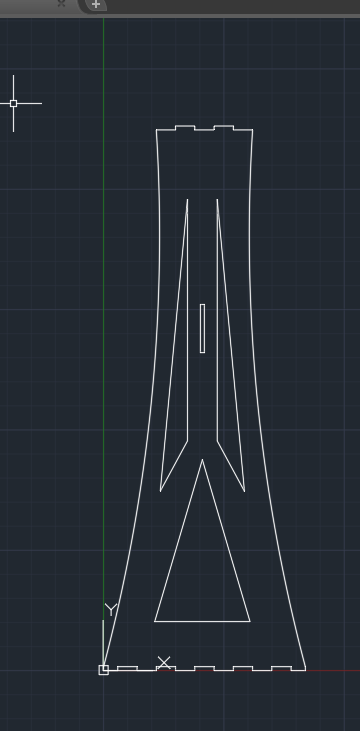
Next thing was the neck, or what elevated the camera from the base. I, again, wanted to have a very slim build, which would play its role in lowering the center of gravity. Looking back on it, I wished that I had left some more material in the neck, but it works:

Robot Neck

Finally, the cherry on top was the top mounted plate. I was not a big fan of having a photo every ~7 seconds, as that is just inefficient. Luckily, my adviser (shout out to Mr. Medvitz!) hooked me up with a pair of these Mobius Actioncams. These are similar to the ever popular Go-Pro, and they are capable of recording at 60 fps. And because I have a pair of them strapped onto my robot, they would have an effective 120 fps. That means that this robot can take the same number of photos the previous robot did in 14 minutes, but do it in one freaking second.

You gotta love technology.

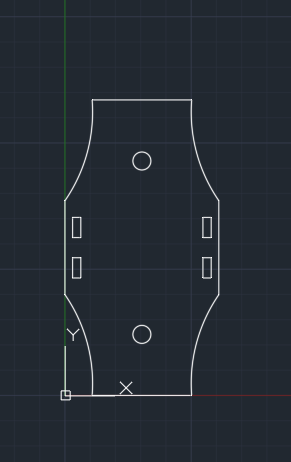
Anyways, here is the design for the top plate:

TopPlate


Then it was off to school to laser cut these Bad Larry’s out.

It should be noted that I used and designed these pieces to work with 2.032mm (or 0.080″ if you don’t have a burning love for SI units) acrylic.


Finally assembled:


Note: I had to jerry-rig some tank threads out of duct tape because it turns out that the robotics kit I stole the wheels from has more friction in the system than my feet on the ground when my parents drag me out shopping. This resulted in the robot just pushing the front wheels around, and an inability to handle bumps of any nature. By connecting the pair of wheels by some duct tape, I am losing energy and potentially battery life, but all the wheels are powered and the robot can now handle almost every surface type.

I know that this robot is not very pretty or even that “impressive.” Given more time and materials, I would have preferred to have made a much more elegant robot with a 4 wheel drive, maybe even geared for speed. However, given that this robot was thought of, precisely measured, designed, cut, and assembled within a matter of days, I’m happy with the results.

Custom PC Buildlog

As seen in my previous post, I wanted to write this post as I did this build, but I just didn’t have the time. Instead, this is a summary of my experiences building a PC.


Over the last few years, I have always gotten second hand computers. I’m totally fine with that (I mean, free computer, what’s not to love?), but when running intensive tasks such as AutoCad, or some program that I wrote, these computer can become serious bottlenecks.

So I decided it was time to burn through my life savings a year before college and build a PC.

Here are a list of requirements that I had for my PC:

  • Very strong processing power that can handle multi threaded workloads like a champ
  • “Future – resistant” motherboard that can keep with the changes in technology for at least the foreseeable future.
  • Strong cuda-enabled graphics – I’m definitely not someone who games, or even likes to game, but a cuda enabled graphics card is a killer piece of hardware when it comes down to running more intensive programs as well as code
  • Overclocking capability – similar to the “future-resistant” part I mentioned before, I want to be able to overclock my system later on to squeeze all the performance that I can get out of it
  • Fast OS – good boot up times
  • Decent amount of mass storage – I plan on having this as my main rig, and a mere 128 gb system won’t cut it
  • Mid tower – nobody wants to bring a computer that is bigger than their back pack to college
  • Windowed case – I’m about to blow my life savings on silicon, and solder; I better be able to oogle at it’s beauty every day.
  • AFFORDABLE – I ain’t made of money!

So based on these requirements, I came up with my parts list:

  1. Intel i7 – 6700k processor: I thought this was a decent processor for the task. I would have preferred a higher core count, but I feel like this is an updated/future resistant processor, not to mention the single thread performance and overclocking capability make it a solid choice for this build.
  2. z170x-UD3 motherboard: My motherboard options weren’t the biggest, as the skylake processors are still new, but this motorboard stuck out to me because of its M.2 and type-C connector, which means that this mother board will still be relevant when those protocols become the standard.
  3. GTX-970: My original plan was a GTX 960, or something even worse than that. I was about to pull the trigger on buying a 960, but then a friend offered me the 970 for the same price as a 960, making this card a no brainer-choice for the GPU.
  4. PNY 258gb SSD – I really wanted one of those fancy NVMe drives that are insanely fast for my OS, but my wallet held me back, making me stick with the tried and trusted SATA 3 ssd. I don’t remember the exact model number, but this drive was cheap, well rated, and the performance that I was looking for.
  5. WD 1TB hard drive – Again, don’t remember the exact type of hard drive, but similar story to the ssd: cheap, well rated, and good performance.
  6. NZXT S340 case – This is one of the cheapest cases that I have seen. What made this stick out to me is that is gorgeous for its price point, and it is so cheap that I won’t think twice if I ever have to mod it.

The rest of my parts list can be found at: http://pcpartpicker.com/list/Ldtq3F


I really wish that I had taking photos while building the PC, but as you could guess, I was so excited to build this PC that I completely forgot to document the process. So, without future delay, here is my new rig (I know the LEDs are tacky, but I gotta have some fun :P)

3D Printed Headphone Stand [UPDATE]

Sorry for not posting a while. Between school and doing these projects, I really didn’t have the time to write up posts. Hopefully that will change as I move over all the work that I did and document it online.

Anyways, onto this update…

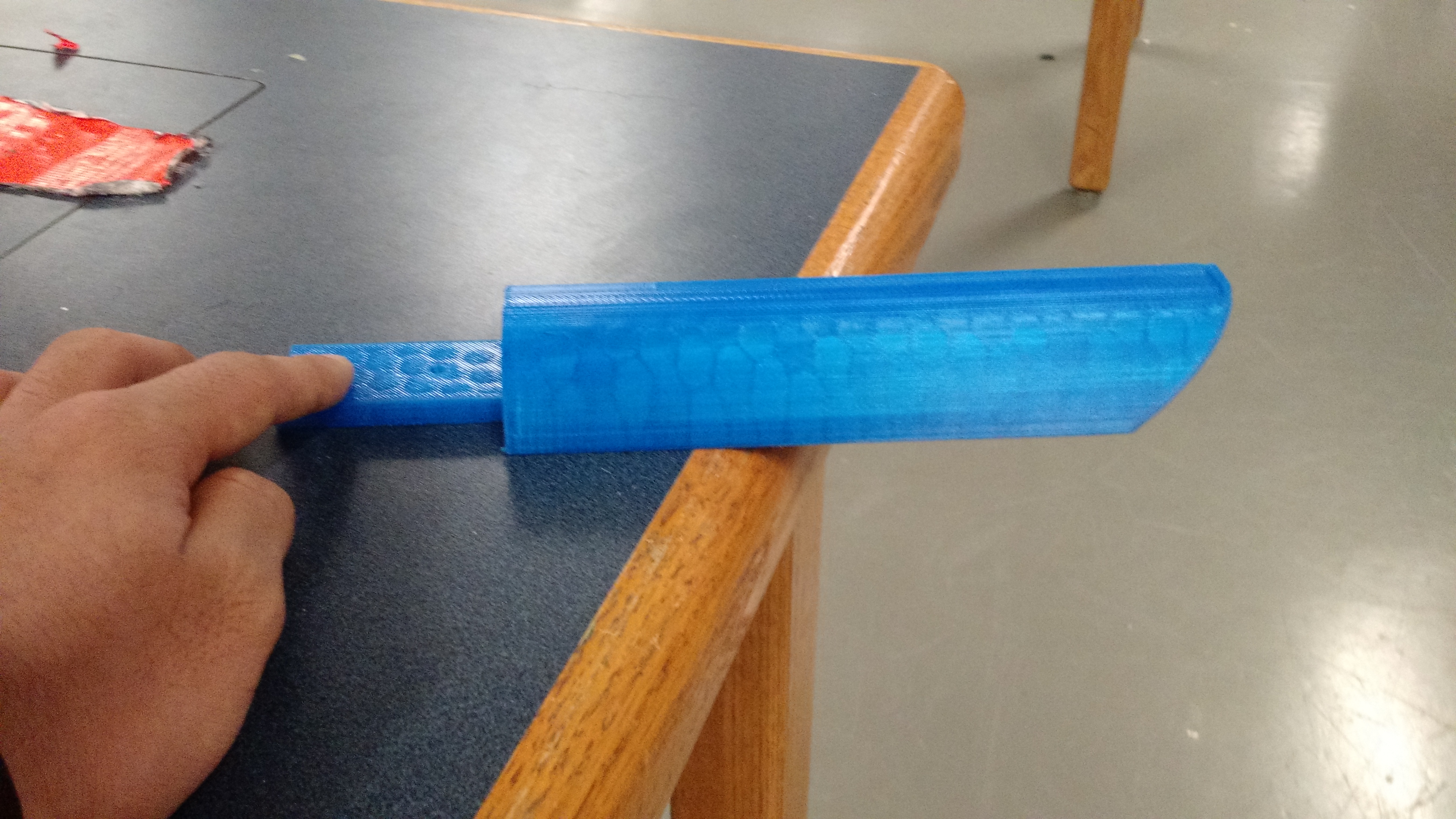
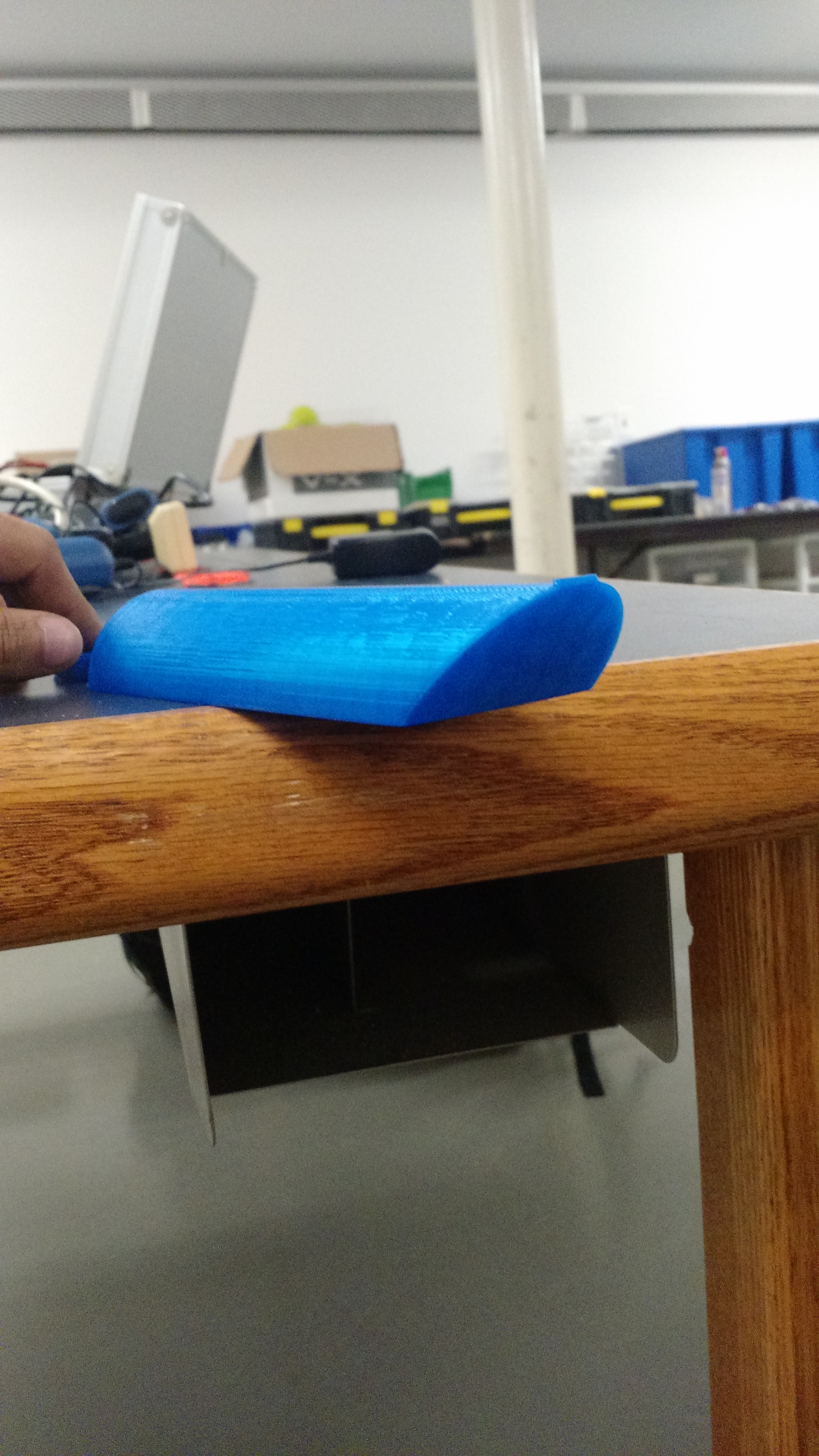
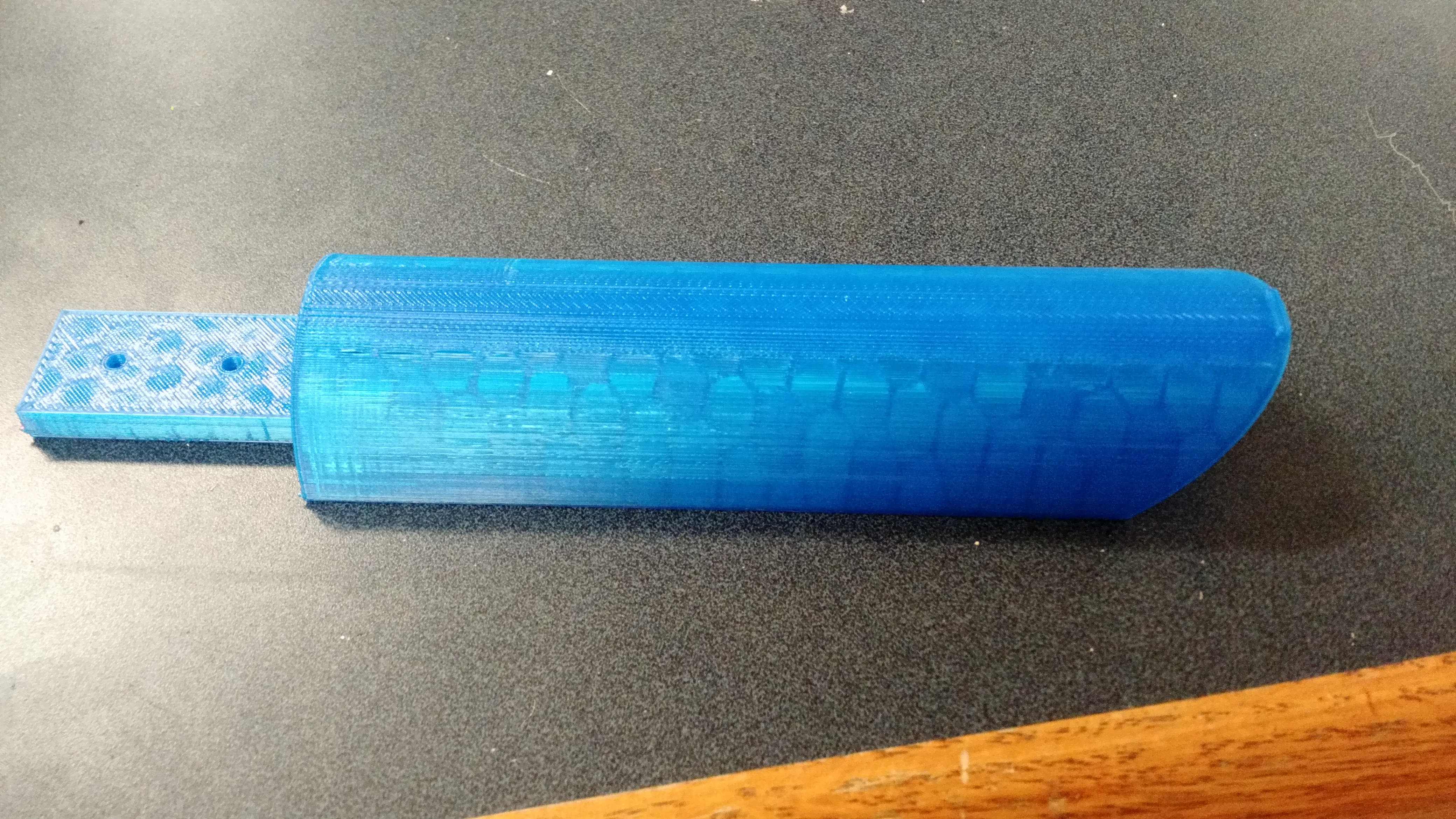
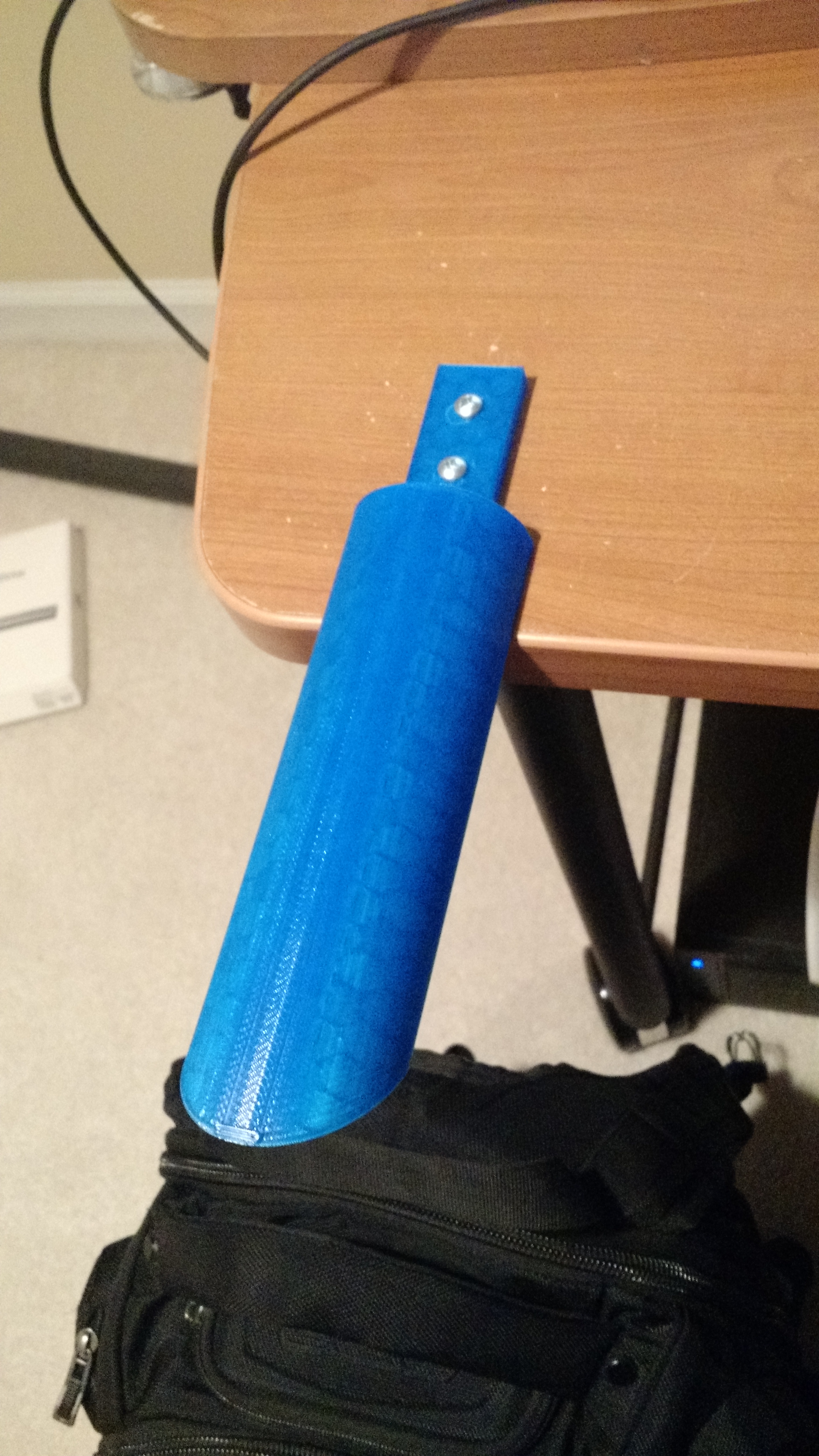
My mother for some reason wanted to paint my room, and as you may recall, the headphone stand that I designed was screwed onto my desk. This headphone stand is meant to hold a very sizable amount of weight assuming the force of the object is directed downwards.

Well, there happened to be a force directed upwards when the desk was being moved to paint the walls:

So lesson learned: either I support the headphone stand from the bottom of the desk as well, or make it completely independent of the desk.

Considering that I’m heading off to college in under a year, I think having a headphone stand independent of the desk might not be too bad of an idea.


Stay tuned for that.

PiRoom – Natural Alarm [Concept]

This is the next phase in the PiRoom project. I glossed over this earlier, so I’ll expand on the idea of natural alarm. A natural or light-up alarm clock basically simulates how the sun rises to mess with the hormones in our body to give a more relaxed wakeup.

While these things cost around $150, I thought I might as well make my own (as I already have the LED framework made).

As GALE is still being made, I’ll have to make a system that isn’t based off of user sound input. Instead, I’m going to use Google Calendar. The goal is to have a calendar of all of the wake-up times, and use that information to remotely control the Pi and in turn, the alarm clock.

I’m still trying to work out the API (google is brutal with the process), and I’ll keep posting updates.

Flywheel Controller

Normally, I don’t post much about robotics, as the things developed are usually simple things as mapping a button on a controller to motor power; however, I just pulled off an all-nighter for this program, so I think it deserves a writeup.

Before that, some background:

This year’s competition in VEX is called “nothing but net,” where robots have to get small stress ball into a net that is roughly 2 – 3 feet high. There is one big limitation, however: the robot cannot extend past 18 inches, until the last 30 seconds.

What our team decided to do was to have a flywheel, and a ramp under it, so we could launch the balls into an arc and right into the high goal:

Now, this worked great, but we had to find out a way to accurately control the flywheel in order to make it be useful.

First we tried a simply PWM-type system.
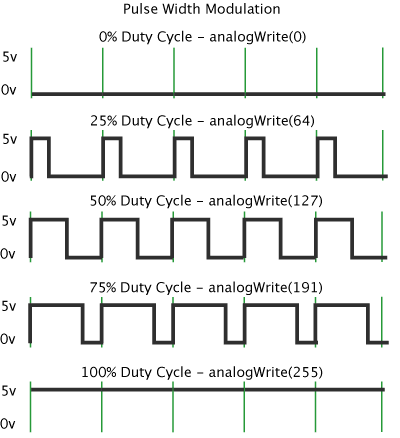
We had build these custom ratcheting clutches that only spun one way, and free spun the other. What the code basically did was to run the flywheel at full power until it reached a desired angular velocity (omega), and then simply turned off the power so the wheel just kept on spinning, with no power behind it. This worked fairly well, however we noticed that it was extremely inconsistent, as when the ball hit the wheel, it would it the wheel at different times in the PWM cycle (one time it would hit when the wheel was free-spinning, other times it would hit when it was powered), so we had to scrap that idea and do something else.

We then came up with another solution: have to microcontroller adjust the motor power until the actual omega was the same as desired omega. So we did just that:
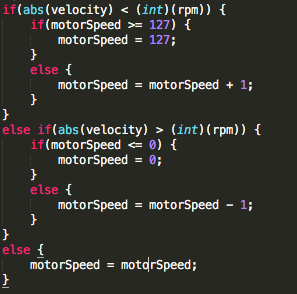
Nothing but Net Oscillator Code

This worked, but it took forever to stabilize. This was due mostly in part to the mass of the flywheel, and the fact that the inertia was messing up the microcontroller. This meant that the motor power would oscillate until it finally got a value that was stable, which is what we wanted, but it did it in 10 seconds, which is something that we did not want (Keep in mind that the whole match is 1.5 minutes long). So we had to work up on another solution.

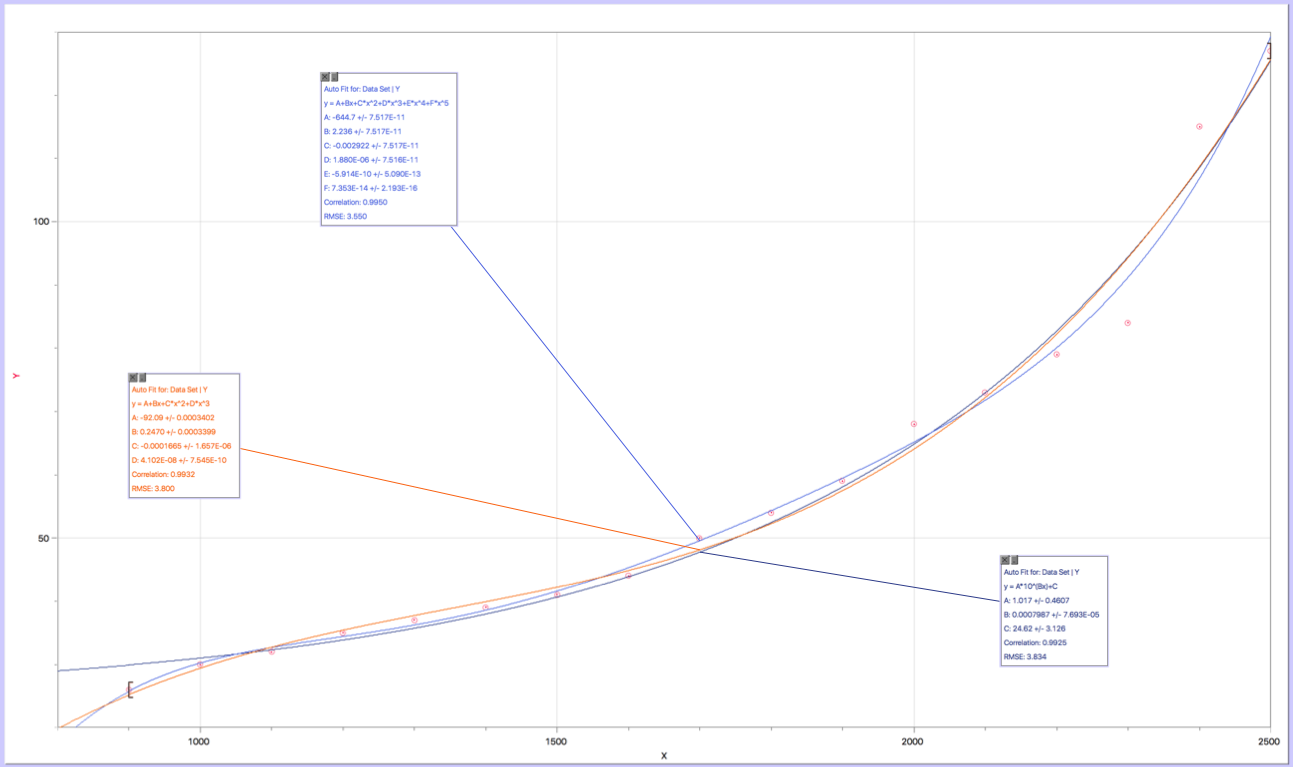
We had the code to determine the motor power for any desired omega, so we decided to just take a bunch of data points and make a function out of it, which we did:
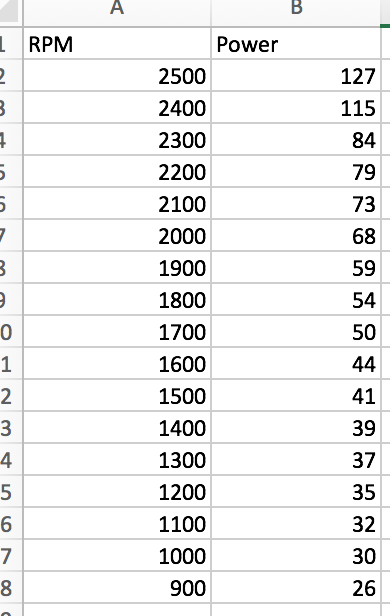
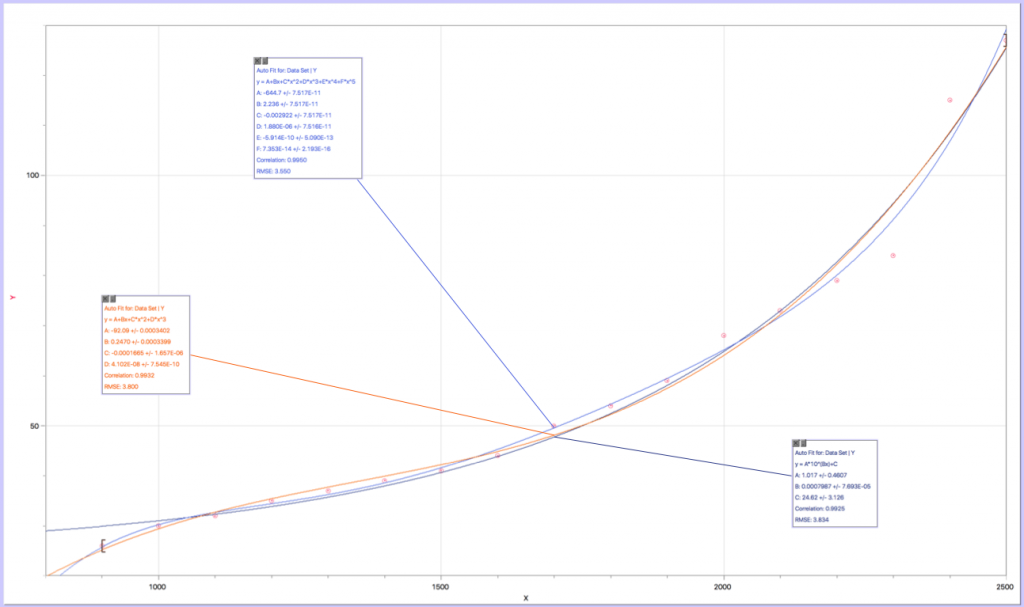
Power VS RPM data Points Power Vs. RPM Curve Fit

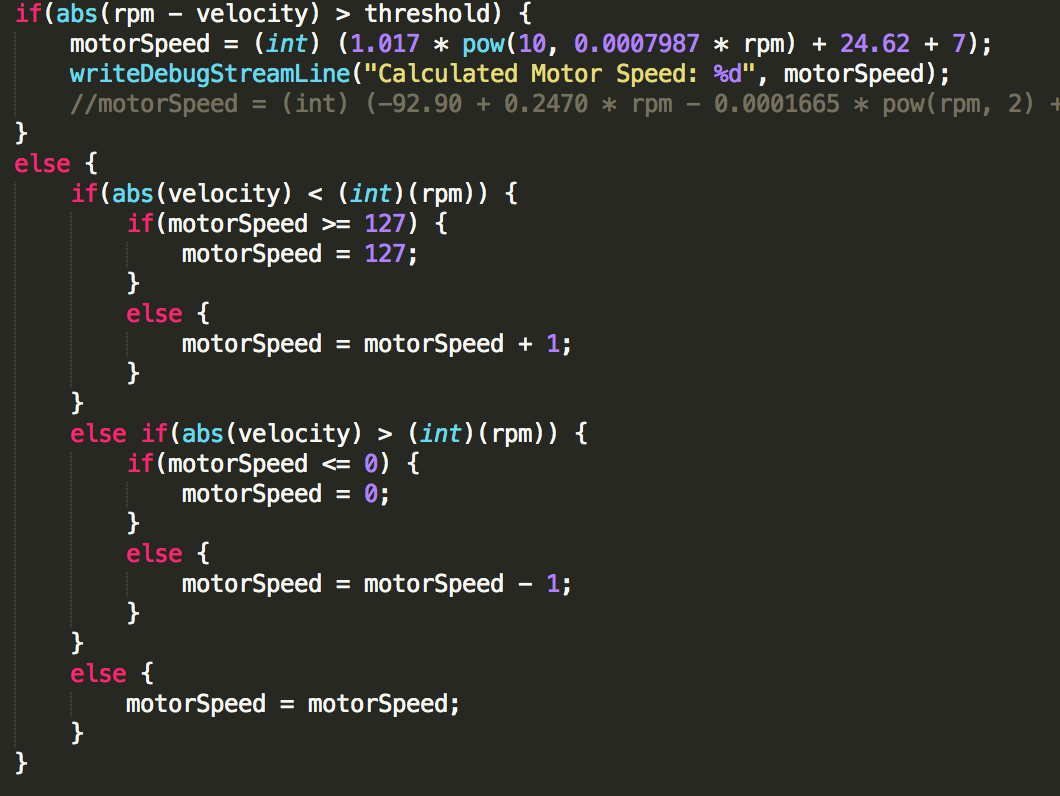
Power Vs. RPM Code

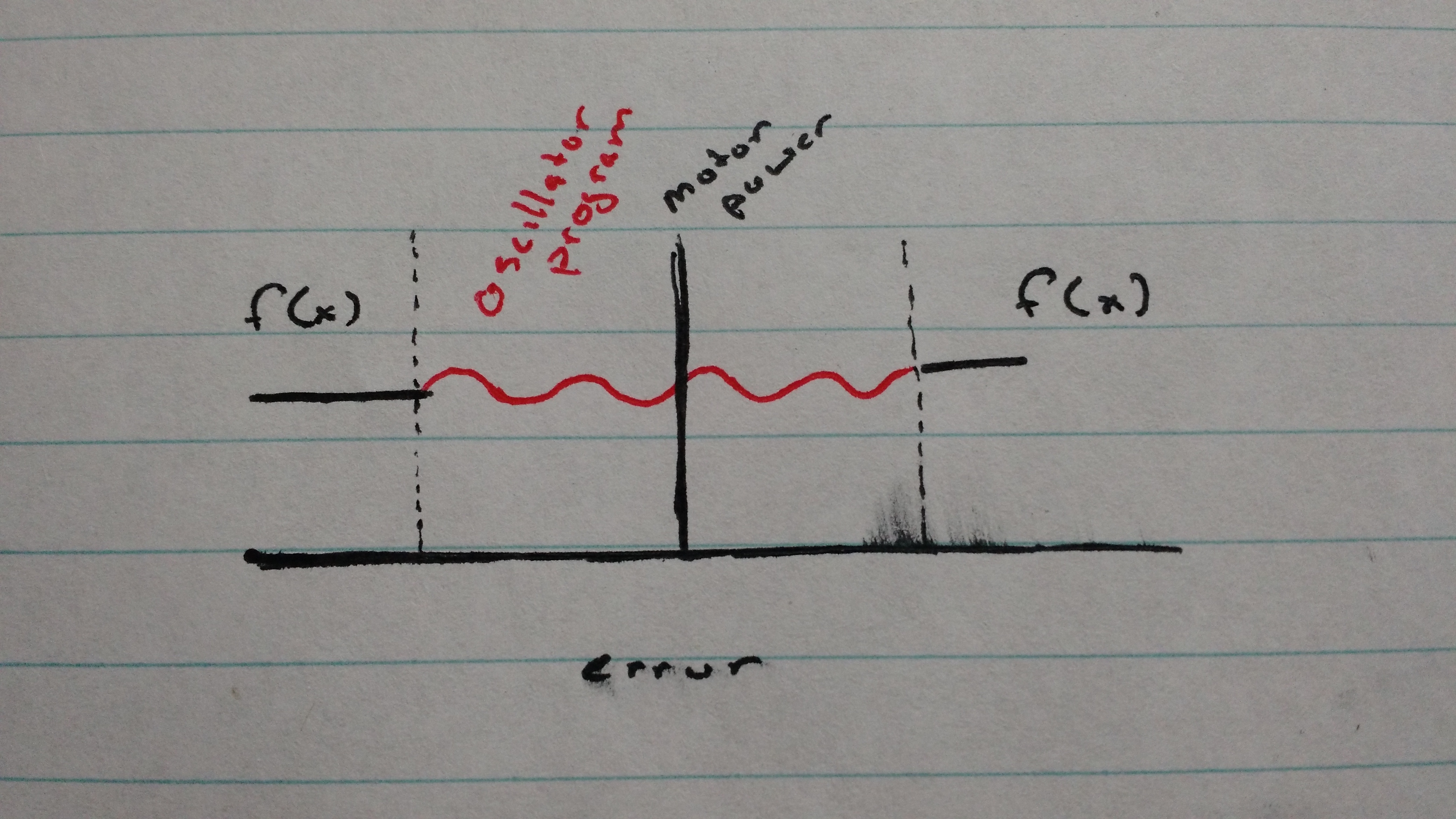
Now, this worked great, but the problem was that our correlation coefficient wasn’t 1, so we didn’t have an accurate function, at least the precision to what we needed. Then we realized if we combined this function with the oscillation, we would be able to have a accuracy of the oscillator program, with the speed that the function offers. This can be modeled with the following graph:
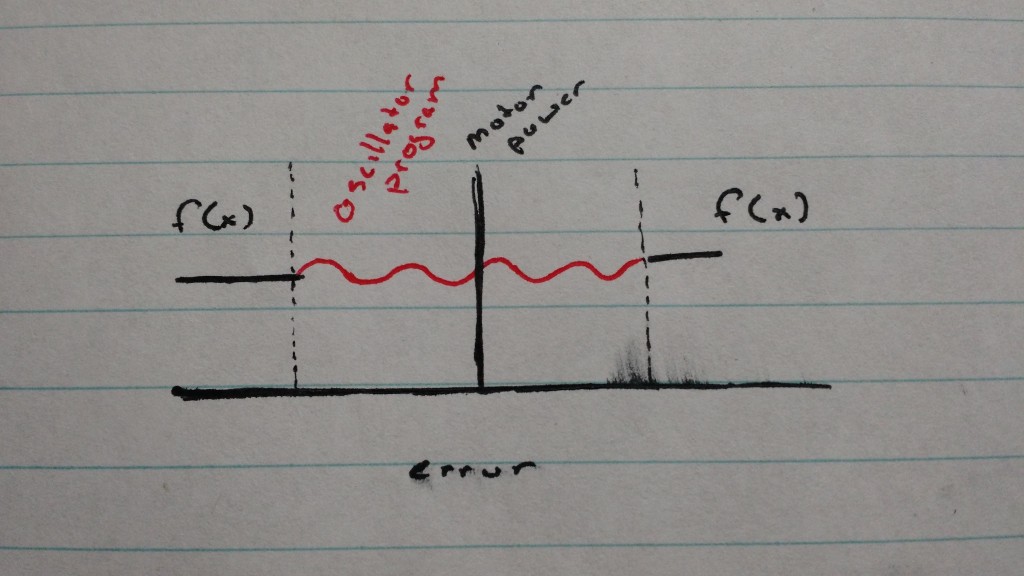
f(x) and oscillator only

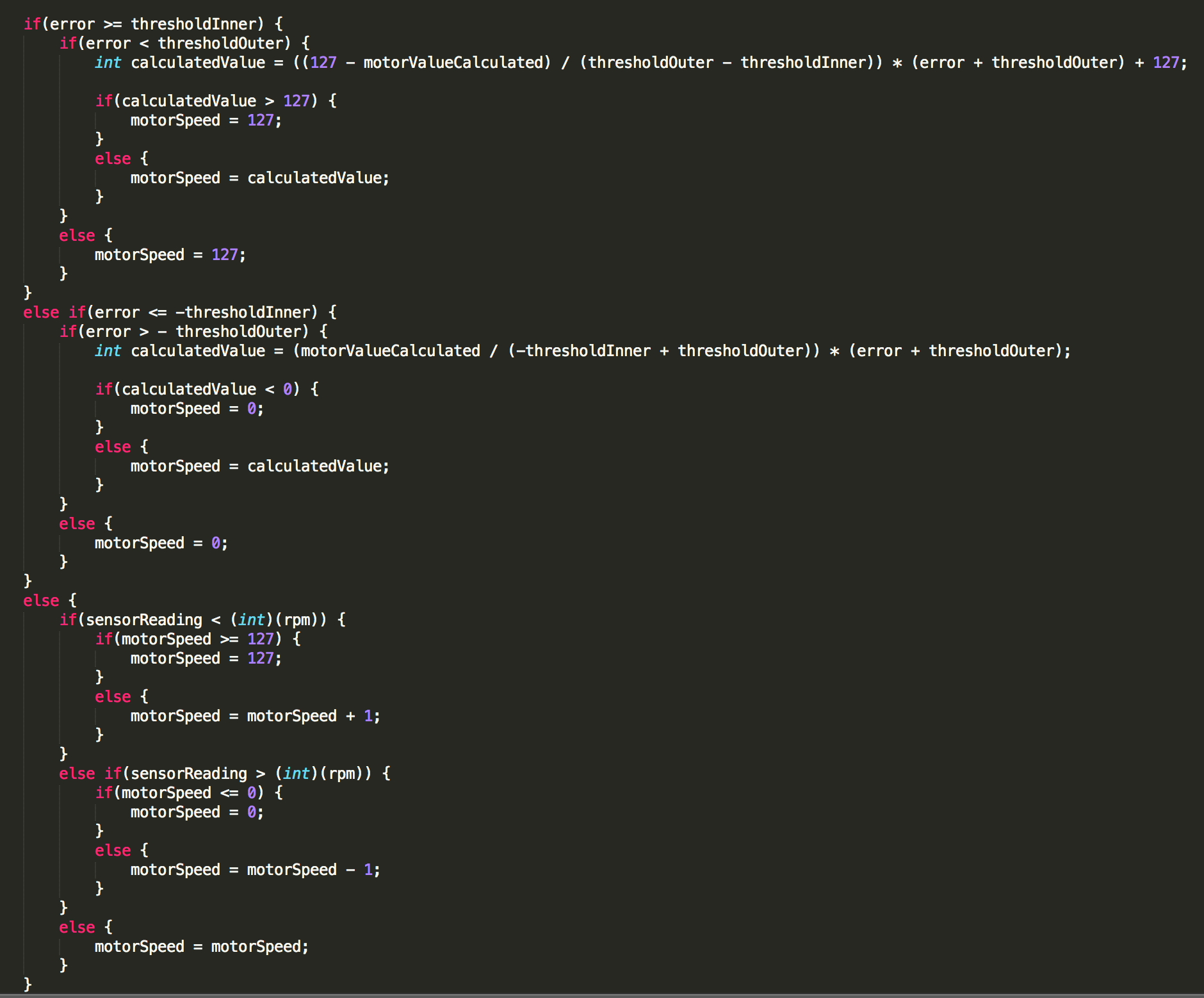
In this case, error = (actual omega – desired omega). Basically when the user changes the desired rpm, the program gets a baseline number (determined by the function above) and uses that until the error gets within a certain threshold (indicated by the dashed lines). Once the error is within that threshold, the oscillation program takes over, and the amount of time that the oscillator takes is reduced because the motor speed is already close enough to the stable value that the oscillator only has to do a minimal amount of work:
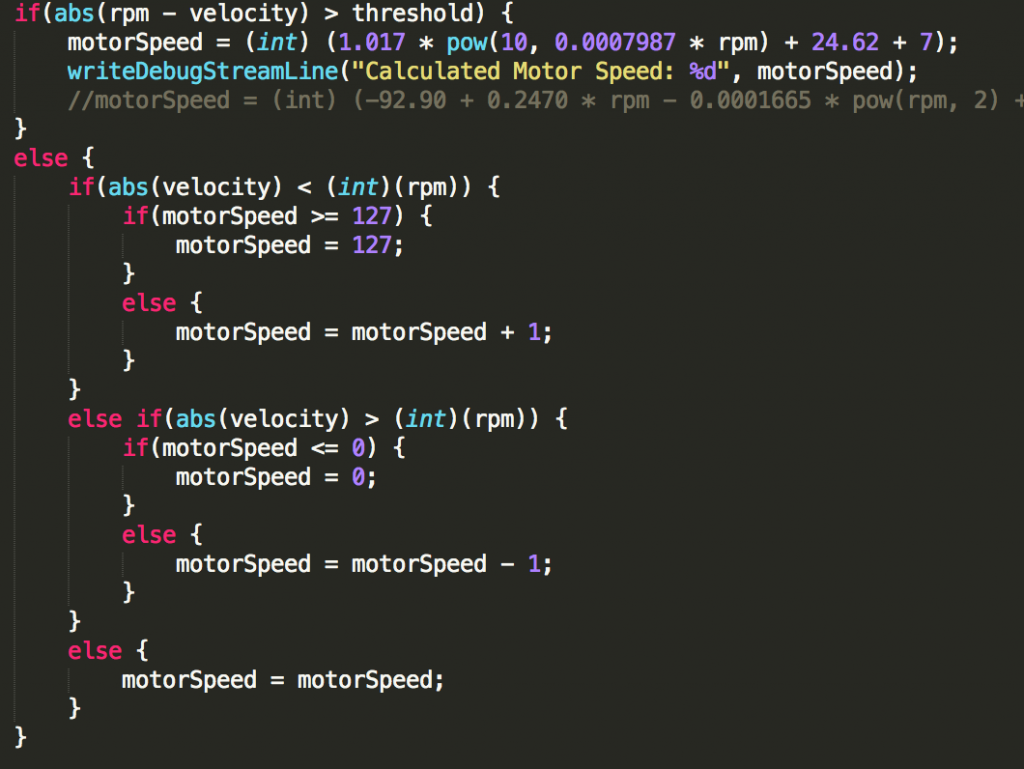
Oscillator and Function Code

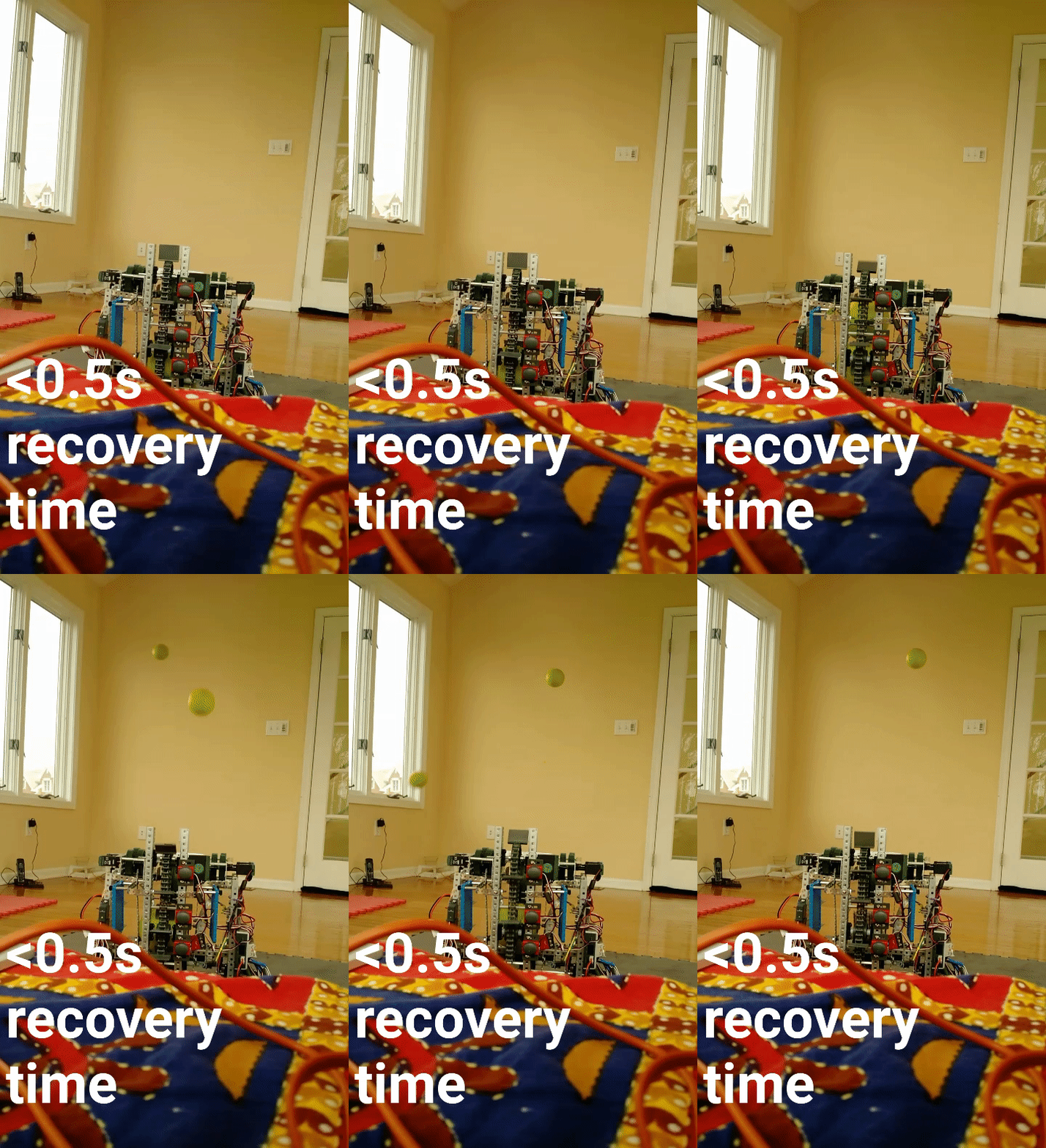
This reduced our rev up / recovery time to 2.5s, and got us to worlds! However, I still wasn’t satisfied. Which leads me to *sigh* last night.

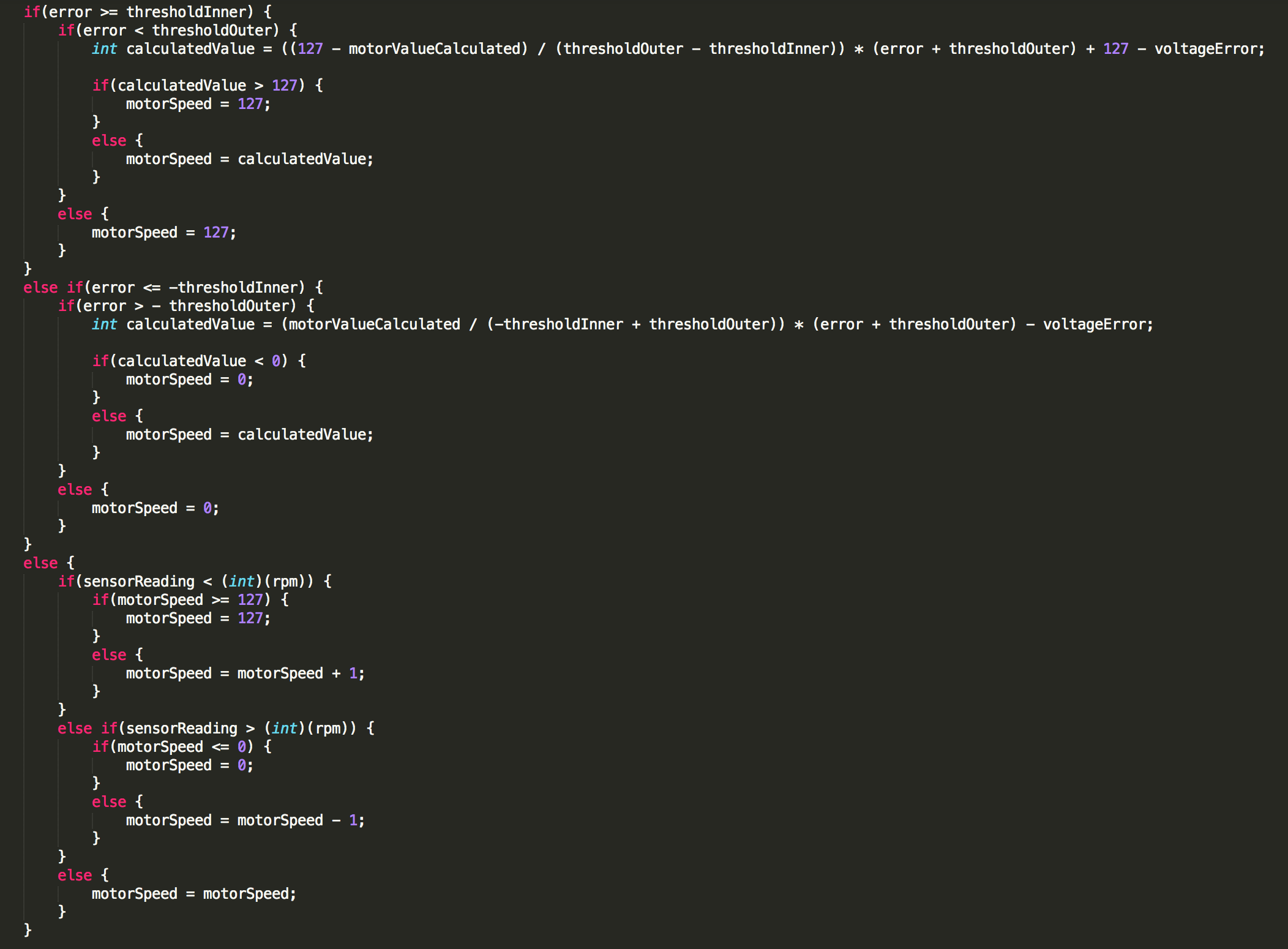
What I was thinking was that the function gave a fairly accurate value (which isn’t actually the case, but I’ll elaborate on that later), so I thought, why not use more power the higher the error is to make the recovery time even smaller? That was pretty poorly phrased, so the model below will probably do a better job than I can to explain it:

As you can see, the greater the error, the greater or less the motor power, resulting in a derivative with a larger magnitude. It is also important to note that the second point (P2)’s y value is the calculated motor power from the function. What we have there, then is two points, and a linear line that is connecting them. A simple bit of algebra later, and you have the following equations:

Now, this is what you call fast. However, I noticed that there was still a great amount of inaccuracies. After realizing that I was torturing the robot batteries, I realized that the whole function we had was completely reliant on battery voltage.
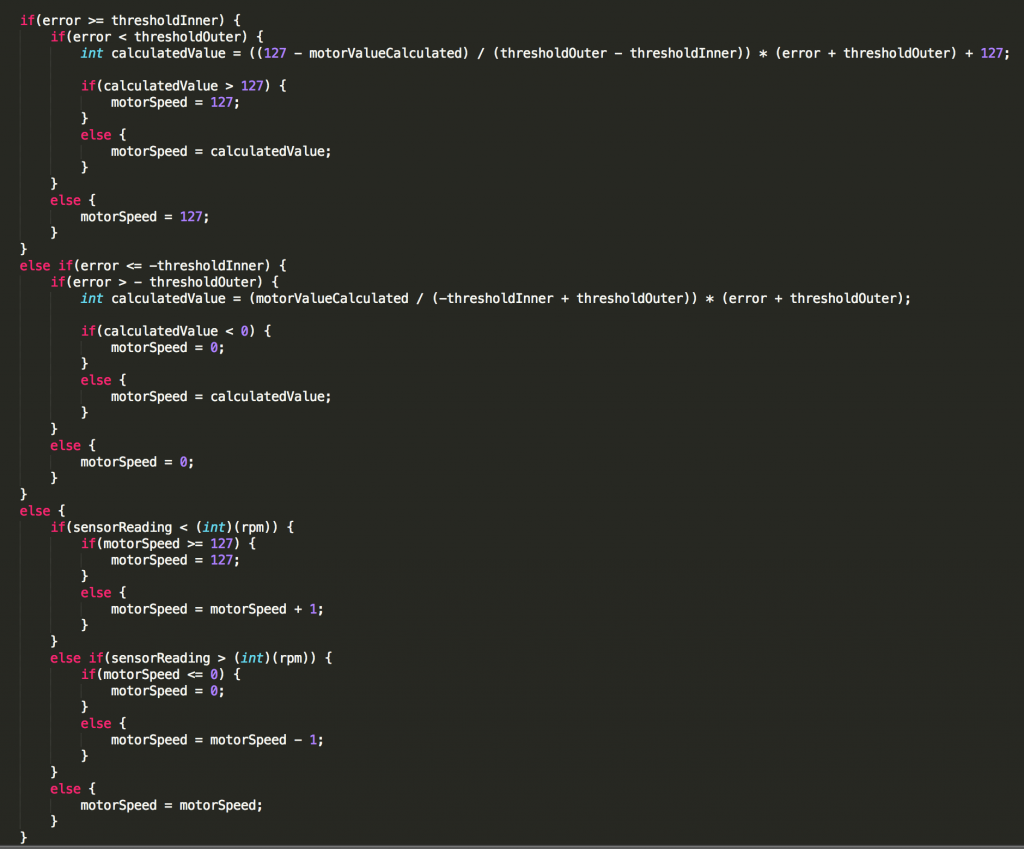
Linear Controller Code

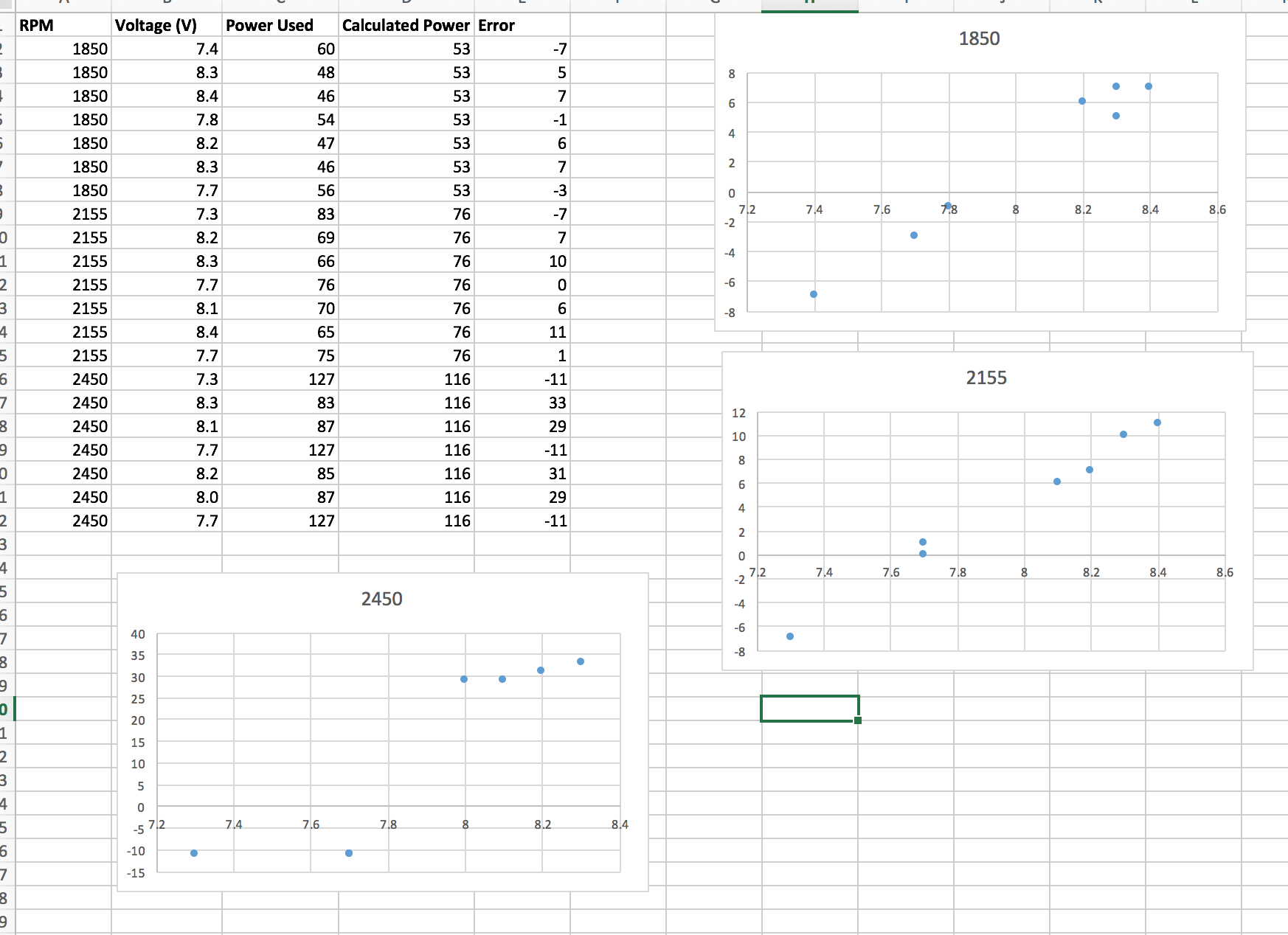
I connected up a few wires and was able to get a reading of the battery voltages from the microcontroller. I then setup a simple test, where I had a bunch of different voltages and determine the actual motor power required compared to the calculated value:
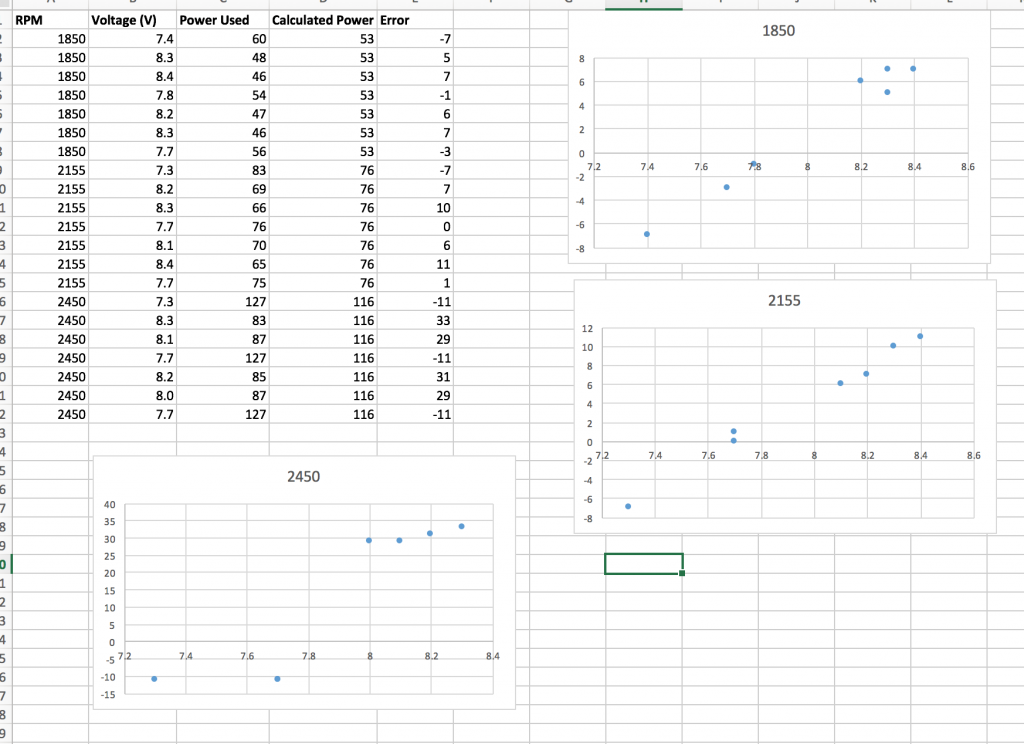
Battery Voltage Function

It turns out that the equation for the lines of best fit for the rpms of 1850 and 2155 are nearly the same, and that 2450 starts to plateau off at the end. Instead of making some killer rational function or something like that, I just took the average values from the lines of best fit from the 1850 and the 2155 graphs, and cut it off after the error was over 28 (which was to account for the plateau in the 2450 graph):

Battery Voltage Function

Note: I divided the sensor value by 275 to convert the raw value into volts. After this, I simply offset this value from the other graph:

Voltage and Linear Code

Now, before the whole internet jumps on me, I now realize that I made a math error that is pretty stupid. Instead of adding an offset to the equation, I should have modified the y value of the point P2 (a couple of images ago) to properly account for the battery error. This was indeed an amateur mistake made at 4 in the morning, however, I came up with a solution that might be able to compensate for that mistake.

So this worked a lot better, however inertia was still a problem. Basically the rate of change of the line was too steep, so the microcontroller couldn’t keep up with the wheel.

To account for this, I decided instead of using a linear relation between the two points, use a parabolic relationship instead:

After a little algebra: I came up with the following:

After committing it to code (and using the voltage offset on P2, NOT a vertical translation), this is the final result:

Flywheel Controller Final

And the best part:

Robotics Nothing but Dank

PiRoom – LED Lighting [Nearly Done!]

Quick update….

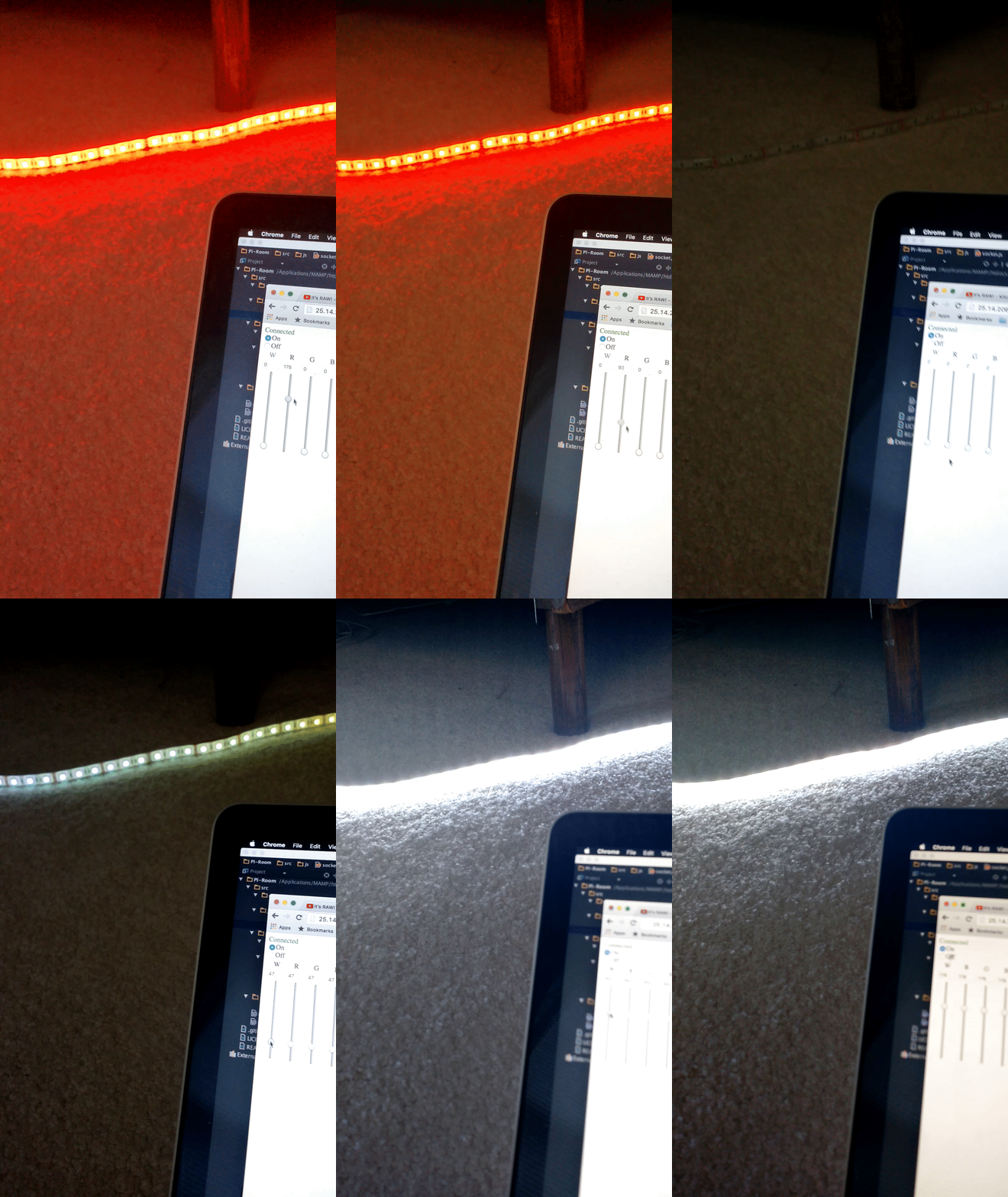
On the bus ride home, I finally got this thing working. Although I really can’t show it in a picture of a gif, all of the values from the clients are stored onto the server, and pins’ PWM is activating.

It also turns out that there is a shortage of a whopping two transistors. I’m still trying to scrounge the internet for deal which doesn’t result in me being ripped off, so it might be a while before I can get this thing hooked up and working.

Another quick point:

Turns out that my LED strip that I bought is only 16′, not nearly enough to cover the perimeter of my room, so I’ll have to bite the bullet and buy another one of those as well.

Finally, you can view all of my code (and my somewhat entertaining commit messages) at my github.

PiRoom – LED Lighting [Update]

I tried and tried to get the Websocket working, but I just couldn’t get the thing to work. Back to Google.

I found a different source where the author got his code to work with the Pi, however it was made for a different purpose. After tweaking the code, I finally got what I have been trying to achieve for weeks:
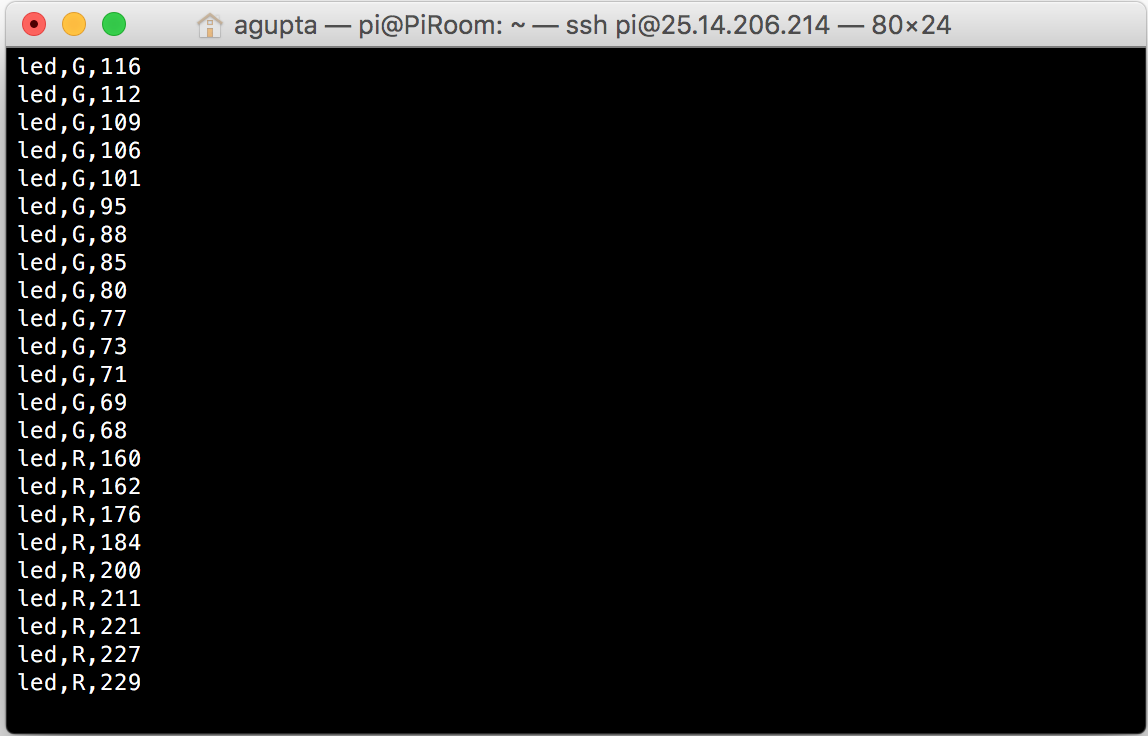
Websocket Connected

Not only that, turns out my JavaScript was also working pretty nicely, and I was actually receiving the data values from the user as well:

Websocket Output

So far, this is looking good. I just need to make all the clients synchronous and parse the data above.

As always, all of my code and updates can be found on my github.