Sleep / Unlock Keyboard Button Using AppleScript

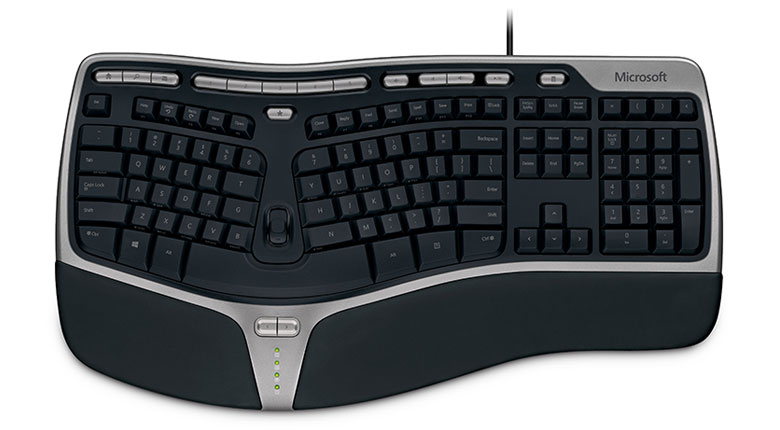
As I mentioned before, I use the Microsoft Ergonomic Keyboard 4000 for my daily keyboard. I initially remapped three of the keys to control my Spotify, but I got intrigued by the power of AppleScript, and I tried to see what else I could do with it.

As I’m a huge fan of only using the keyboard, not a mouse (funny, because I’m using a Mac), I thought it would be cool to have an unlock button as well as a put to sleep button. After a little bit of research, this is what I came up with:

Sleep button:

on run {input, parameters}
	
	tell application "Finder" to sleep
	
	return input
end run

Unlock Button:

on run {input, parameters}
	tell application "System Events"
		keystroke "My Password!"
		delay 0.25
		key code 36
	end tell
	return input
end run

A side note, I changed my actual computer password with a placeholder (for obvious reasons). Although these programs may not seem impressive, they are not meant to be the next AI, but they are meant to serve a specific task, and they do it well.

You might also be thinking that having a button on your keyboard to unlock your computer is pretty risky, but the way I see it, my laptop is only connected to my keyboard in my house, and I don’t have anything on my laptop that I don’t mind anybody in my house seeing.
Controlling Spotify with Microsoft Ergonomic Keyboard 4000

This was done nearly a year ago, but I didn’t have this website then, so I’m just quickly rewriting my process over here. This whole project took roughly 30 minutes (5 minutes programming, 25 minutes on reading up how Applescript works.)

For my daily keyboard, I use the Microsoft Ergonomic Keyboard 4000:Microsoft Ergonomic Keyboard 4000

I like this keyboard in particular due to its shape: it enables me to type faster and more accurately for longer periods of time. However, the default hotkeys on the top are only meant to work with iTunes, and I use Spotify. I decided to change this by making three small Applescript programs to control my next track, previous track, and pause/play functions in Spotify.

The code for the following three is below:

Spotify Previous Track:


on run {input, parameters}
tell application "System Events" to get name of every process

if the result does not contain "Spotify" then
tell application "Spotify" to launch
repeat until application "Spotify" is running
delay 0.25
end repeat
delay 5
end if

tell application "Spotify" to next track
return input
end run

Spotify Play Pause:

on run {input, parameters}
tell application "System Events" to get name of every process

if the result does not contain "Spotify" then
tell application "Spotify" to launch
repeat until application "Spotify" is running
delay 0.25
end repeat
delay 5
end if

tell application "Spotify" to playpause
return input
end run

Spotify Next Track:

on run {input, parameters}
tell application "System Events" to get name of every process

if the result does not contain "Spotify" then
tell application "Spotify" to launch
repeat until application "Spotify" is running
delay 0.25
end repeat
delay 5
end if

tell application "Spotify" to next track
return input
end run

As I said before, these programs are extremely small, and they are meant to run quickly at a moment’s notice. I simply mapped this programs to my keyboard hotkeys, and I can now control spotify via my keyboard!