Basic Website: Sliders and Input Boxes

I’m still away form my Pi, but I was still working on my basic website. I wanted the sliders and the input boxes to be in accordance, so that there would be no code clashes in the future. To pull this off, I added this to my slider code:


<input id="ledRslider" name='ledRslider' type='range' min="0" max="255" step="5" class="ledSlider" oninput="ledSlider(this.value, 'R')">
<input id="ledGslider" name='ledGslider' type='range' min="0" max="255" step="5" class="ledSlider" oninput="ledSlider(this.value, 'G')">
<input id="ledBslider" name='ledBslider' type='range' min="0" max="255" step="5" class="ledSlider" oninput="ledSlider(this.value, 'B')">

The main thing to pay attention to is the


oninput="ledSlider(this.value, 'R')"

This bit of code sends the current value of the slider as well as the color of the slider to a Javascript function. The value part is obvious, but I also made the sliders send their color so that there could only be one function, opposed to three.

The corresponding JS function looks like so:


function ledSlider(val, color) {
    document.getElementById('led' + color + 'value').value = val;
}

As seen in the code above, the input box gets updated as the slider changes, and all of the input boxes will get changed to their corresponding slider, all with just one function.

So far, the end result looks like so:
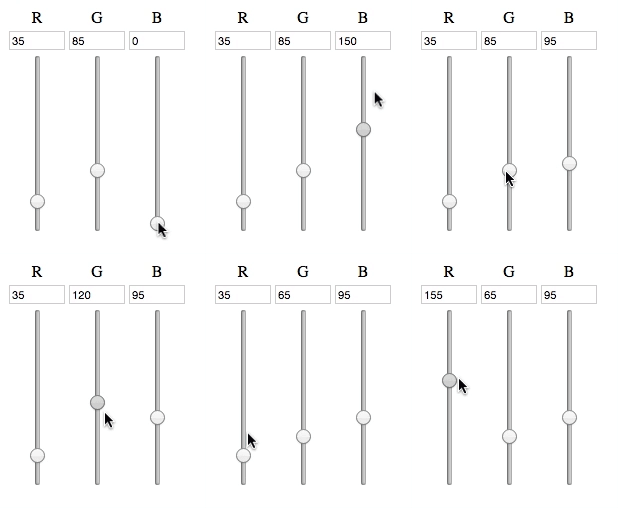
Slider Gif

Now, I have to make a XMLHTTPRequest from the JS to the corresponding PHP, which will then execute the a command from the Pi, which will finally change how the lights work.

The party has just begun.
Basic Website: The Framework

I currently don’t have access to my Pi, so I thought it would be better to make the website in the meanwhile. I want the led control board to kind of look like a throttle setup, where the user can change the RGB values with a scrubber as well as type in values as well. With only a couple of minutes, I came up with this code,

<div id="roomColorControl">
 <table>
   <tr>
     <td><center>R</center></td>
     <td><center>G</center></td>
     <td><center>B</center></td>
   </tr>
   <tr>
     <td><input id="ledRvalue" name="ledRvalue" class="ledValue" type="number" max="255" min="0"></td>
     <td><input id="ledGvalue" name="ledGvalue" class="ledValue" type="number" max="255" min="0"></td>
     <td><input id="ledBvalue" name="ledBvalue" class="ledValue" type="number" max="255" min="0"></td>
   </tr>
   <tr>
     <td><center><input id="ledRslider" name='ledRslider' type='range' min="0" max="255" step="5" class="ledSlider"></center></td>
     <td><center><input id="ledGslider" name='ledGslider' type='range' min="0" max="255" step="5" class="ledSlider"></center></td>
     <td><center><input id="ledBslider" name='ledBslider' type='range' min="0" max="255" step="5" class="ledSlider"></center></td>
   </tr>
 <table>
</div>

The reason why I went with a table format is that it will be easier to handle, and it gives me the ability to put the text box on top of the slider without much hassle in the CSS area.

Speaking of CSS, the slider’s default position is horizontal, and I had to make it vertical, so I added this into my CSS file:


.ledSlider {
    -webkit-appearance: slider-vertical;
    writing-mode: bt-lr;
    width: 8px;
    height: 175px;
    padding: 0 5px;
}

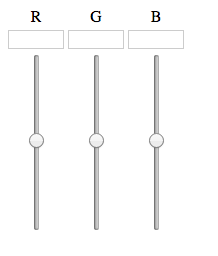
With a little CSS here and there, the result is this:

LED strip control basic

Now, with a little Javascript and PHP magic, hopefully this can be used to control the lights!